Administrator Protection is a Windows 11 security feature that has an impact on any software that runs elevated. It is available in Windows 11 24H2 and 25H2 from the August 2026 update (KB5120998) onwards. It is off by default, and Windows must be restarted after it is enabled. Although it is configured as a type of UAC (User Account Control) Admin Approval Mode, it works very differently from standard UAC prompts.
To enable Administrator Protection, open Local Security Policy (secpol.msc) or Group Policy, go to Security Settings -> Local Policies -> Security Options, and set User Account Control: Configure type of Admin Approval Mode to Admin Approval Mode with Administrator protection. Organizations can also deploy this setting with Microsoft Intune. On some devices it can instead be turned on in Windows Security -> Account protection (shown below).
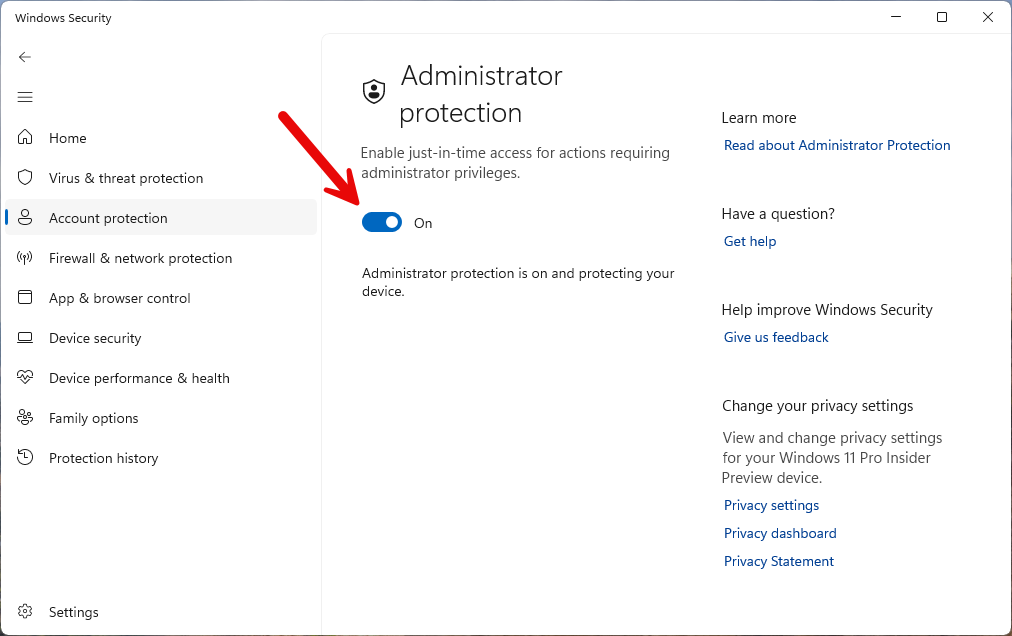
If Administrator Protection is enabled, then any software that is run elevated will require the user verify their identity (via Windows Hello or via the account password). With UAC, you only needed to verify you wanted to start the software elevated. Now you must re-authenticate. However, Administrator Protection adds another layer of security: the software will be run elevated but using a shadow/virtual administrator account and not your account.
For example, if you are a Windows administrator and your account name is BOB, then when you run any software elevated, and administrator protection is enabled, the software will be run by Windows as ADMIN_BOB, i.e. a different account. This can have a serious impact on software which is run elevated, such as SyncBackPro:
•SyncBackPro will not have access to your profiles and settings as those are probably stored in your actual administrator account. To avoid this, SyncBackPro will start an un-elevated instance of SyncBackPro and get details on where the settings are. It will then have access to the profiles and settings (assuming Windows does not block access, e.g. due to NTFS security).
•SyncBackPro is run as a different user account, so the environment variables are completely different (as you are running as a different user account).
•SyncBackPro is run as a different user account, so your Documents folder, for example, is completely different (as you are running as a different user account).
•SyncBackPro is run as a different user account, so you may not have access to files and folders you would have with your actual account.
•SyncBackPro is run as a different user account, so mapped network drives, and network credentials from your normal Windows session, may not be available. Profiles that use network shares or NAS devices may therefore fail when run elevated.
If SyncBackPro is not run elevated, then these issues will not occur as it will be run using your account, as per normal.
Administrator Protection is not currently available on Windows Server, Windows 365 Cloud PCs or Azure Virtual Desktop session hosts.
Also, any existing scheduled tasks will run as the correct user account and not as the shadow/virtual administrator account. Unlike when software is run manually, any tasks started from the Windows Task Scheduler are run as the user account specified and not as the shadow/virtual administrator account.
Further reading: Administrator Protection on the 2BrightSparks website.
SyncBack Settings
By default, if SyncBackPro is run as the shadow/virtual administrator account then a warning will appear. You can disable this in Global Settings -> Security.
Also by default, no profiles will run using the shadow/virtual administrator account. If you want to allow this then you need to allow it in the profiles settings (Misc. -> Elevation).
Web Browsers and Cloud Sign-in
When SyncBackPro is run elevated with Administrator Protection enabled, any web page it opens, including the sign-in page for cloud storage accounts, is opened in your web browser as your normal Windows user account. This means your usual default browser, saved passwords and existing sign-ins are available. If the browser cannot be started that way, it is started as the virtual administrator account instead, which has none of your browser settings or sign-ins.
Windows Data Protection API
If the option Store sensitive settings using the Windows Data Protection API is enabled, your sensitive settings can only be decrypted by your own Windows user account. The virtual administrator account used by Administrator Protection is a different account and cannot decrypt them, so SyncBackPro will not start when run elevated. Either run SyncBackPro without elevation, or turn off the option (while running without elevation) before running it elevated.
SyncBackFree
SyncBackFree cannot be run elevated when Administrator Protection is enabled, as it cannot use your settings and profiles from the virtual administrator account. Run SyncBackFree without elevation.
Task Scheduler
If you are using the shadow/virtual administrator account, then when you schedule a profile, SyncBackPro will schedule it to use your actual account.
Administrator Protection has an impact on how the Windows Task Scheduler works with elevated processes. Basically, an elevated scheduled task (i.e. run with highest privileges) cannot be run interactively, which means:
•The trick to use a shortcut to run SyncBack elevated without a UAC prompt, via the Windows Task Scheduler, will not work if Administrator Protection is enabled.
•SyncBack cannot be run elevated on login if Administrator Protection is enabled.
•You cannot run a profile on login elevated if Administrator Protection is enabled.
•Drag & drop may not work if Administrator Protection is enabled. For example, if SyncBack is elevated, and you try and drag a profile to the desktop (to create a shortcut), it may silently fail.
All Content: 2BrightSparks Pte Ltd © 2003-2026